5 Best Screenshot Tools to Capture, Beautify, and Share Stunning Visuals in 2026
Find the perfect tool to make every screen capture look polished, professional, and scroll‑stopping.
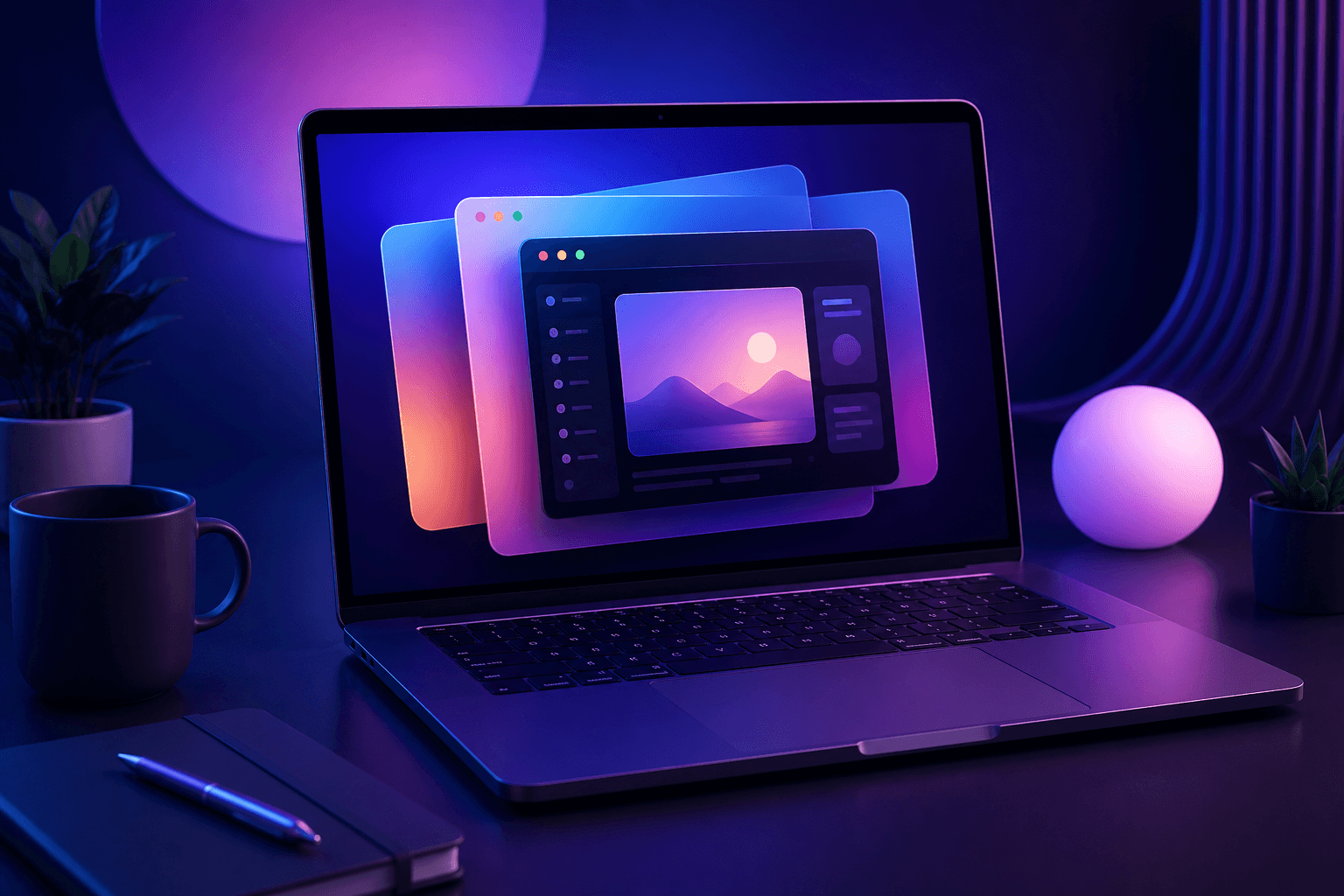
In the age of scrolling feeds, fleeting attention spans, and visual-first platforms, a single screenshot can tell your whole story—or get lost in the noise. Whether you’re a developer documenting a bug, a founder teasing a new feature, a marketer crafting a carousel, or a creator building a personal brand, the way you capture and style your screen makes a massive difference. A raw, unpolished screenshot screams “amateur.” A beautifully framed, well-annotated one signals quality, care, and professionalism.
But not all screenshot tools are created equal. Some excel at the capture itself, giving you pixel-perfect scrolling captures and powerful annotation. Others are built purely for post-processing, turning plain grabs into social‑media eye candy in seconds. In this post, we’ll explore five standout apps—from the macOS capture powerhouse to dedicated styling wizards—so you can pick the right tool (or tools) for your workflow and start creating screenshots that actually get noticed.
A Quick Comparison
| Tool | Best For | Platform | Key Features | Pricing |
|---|---|---|---|---|
| CleanShot X | Capture, record, annotate, share | macOS only | Mac screen capture, annotations, scrolling capture, recording | \(8/month + \)29 for lifetime |
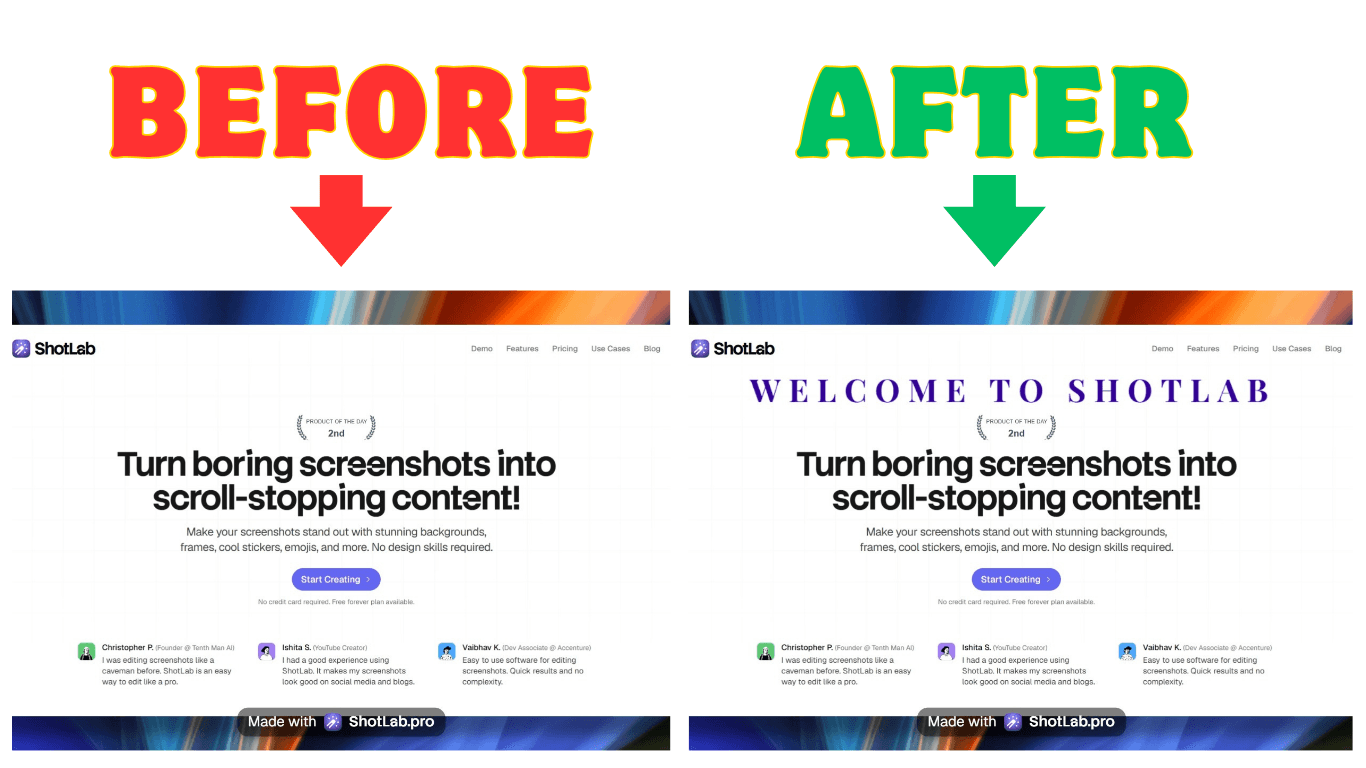
| ShotLab | Fast, styled screenshots | Web | Stunning backgrounds, frames, shadows, annotations, cool stickers | Free + \(1.99/month + \)29 for lifetime |
| BrandBird | Branded social media visuals | Web | Brand kits, 3d effects, smart positioning, shadow presets | Free + \(15/month + \)179 for lifetime |
| PostSpark | Social‑media‑first screenshots | Web | Social post templates, mockups, branding tools | Free + $12/month |
| PimpMySnap | Quick, playful styling | Web | Animated stickers, Highlighting, add texts, annotations | Free + \(3.99/month + \)29 for lifetime |
Pricing was accurate at the time of writing this blog post, and may update later. Check official websites for the original pricing information.
Why invest in a screenshot tool?
Before we dive in, let’s quickly answer the “Why?”
Can’t you just hit Cmd+Shift+4 or PrtSc and call it a day? You can, but you’ll miss out on:
Time savings: Trimming, adding backgrounds, drawing arrows, and framing manually eats up minutes you could spend shipping work.
Consistency: A dedicated tool gives you reusable presets, brand colors, and templates so your visuals stay on‑brand without extra effort.
Better engagement: Tweets with styled screenshots consistently outperform plain ones. Clean backgrounds, soft shadows, and subtle annotations guide the viewer’s eye and reduce cognitive load.
Professional credibility: If you’re selling a product, teaching a concept, or showcasing a portfolio, polished screenshots subconsciously raise trust.
Now, let’s meet the tools.
CleanShot X
Best for macOS users who need an all‑in‑one capture, recording, annotation, and sharing powerhouse.
https://www.youtube.com/watch?v=FZbICrBKWIU&t=1s
CleanShot X isn’t a “screenshot beautifier” in the traditional sense—it’s a complete replacement for your operating system’s screenshot capabilities. Think of it as the Mac’s default screenshot utility on steroids. It lives in your menu bar, hides desktop clutter automatically, and gives you capture options that macOS forgot.
Pros:
✅ Scrolling screenshots are flawless
✅ Annotations feel native and polished
✅ Built‑in sharing and cloud integration
✅ Hides desktop icons automatically for clean captures
✅ Lightweight, always accessible from the menu bar
Cons:
❌ macOS only (no Windows or web version)
❌ Not a “beautification” tool – you’ll still need another app if you want gradient backgrounds, frames, or reflections
Pricing:
$8/user/month for the App + Cloud Pro Plan
$29 for Lifetime Access for the App + Cloud Basic Plan
ShotLab
Best for Creators, founders, and anyone who needs fast, beautiful screenshots with modern styling.
https://www.youtube.com/watch?v=xEyl1Uoq0uA
ShotLab takes a different approach: it’s an incredibly fast web app that transforms boring screenshots into polished visuals, instantly. Think of it as an Instagram filter for your screen captures. You drop in a screenshot, and out comes a social‑media‑ready image with stunning background, rounded corners, shadows, and clean framing. No design skills required.
Pros:
✅ Beginner‑friendly
✅ Lightning‑fast workflow, with an easy-to-use editor
✅ Works in the browser (nothing to install)
✅ Great for creators, founders & indie hackers
Cons:
❌ Web only (no Windows or MacOS version)
❌ Limited annotation tools
Pricing:
Free plan with a small watermark
$1.99/month for the Pro Plan
$29 for Lifetime Access
BrandBird
Best for creators and marketers who want to turn screenshots into branded social media assets.
https://www.youtube.com/watch?v=qlpY-nFUlTA
BrandBird is built from the ground up for content creators. It’s not just about making screenshots look pretty—it’s about helping you tell a visual story that aligns with your brand. With a suite of templates, device mockups, and custom branding options, BrandBird helps you create images that feel consistent and professional across your entire online presence.
Pros:
✅ Huge template library speeds up content creation
✅ Strong focus on branding and consistency
✅ Simple, intuitive editor
✅ Works in the browser (no installation)
Cons:
❌ Best suited for social media and marketing; less ideal for technical documentation
❌ Some advanced features require the premium plan
Pricing
Free plan with basic features and a watermark
$15/month for the Pro Plan
$179 for Lifetime Access
PostSpark
Best for creators and marketers who want to build engaging social posts around screenshots and mockups.
PostSpark is focused on one thing: turning your screenshots, product shots, and ideas into scroll‑stopping social media visuals. Unlike generic design tools, PostSpark’s entire editor is optimized for the kind of content that performs well on platforms like Twitter, LinkedIn, and Instagram. It merges screenshot styling with layout components specifically engineered for engagement.
Pros:
✅ Template variety tailored to social media trends
✅ Fast workflow from screenshot to publish‑ready graphic
✅ Simple enough for non‑designers, powerful enough for regular use
✅ Encourages consistent visual branding
Cons:
❌ Fewer advanced editing capabilities
❌ Primarily web‑based; offline work isn’t as smooth
Pricing:
Free plan with limited templates and a watermark
$12/month for the Pro Plan
PimpMySnap
Best for quickly adding personality and flair to screenshots without overthinking it.
PimpMySnap embraces the fun side of screenshot styling. Its name says it all: you “pimp” your snap with a few clicks. It’s not trying to be a full‑fledged design suite. Instead, it gives you a handful of high‑impact, low‑effort effects that make screenshots stand out in a casual, approachable way. Think of it as the perfect tool for community managers, educators, and anyone who wants a bit of style without a learning curve.
Pros:
✅ Easy to use (perfect for non‑techies)
✅ Outputs have a distinct, charming style
✅ Affordable and often available with lifetime deals
Cons:
❌ Lacks professional annotation tools
❌ Fewer style options than more specialized competitors
Pricing:
Free plan with a watermark
$3.99/month for the Pro Plan
$29 for Lifetime Access
How to Choose the Right Screenshot Tool for You
With so many great options, the choice really comes down to your primary goal:
I need to capture, annotate, and share technical screenshots quickly on MacOS.
→ Go with CleanShot X. Its annotation engine and scrolling capture are unmatched, and you can always beautify the result later in another tool.I create a lot of content want to quickly spice up my screenshots.
→ ShotLab gives you stunning backgrounds, gradients, browser frames, shadow options, and emojis without ever needing any design skills.I’m building a brand and need consistency across platforms.
→ BrandBird is the answer. Templates, brand kits, and device mockups keep everything cohesive and professional.I want to focus on marketing and social media growth.
→ PostSpark is purpose‑built for social media. Its templates are optimized for engagement, and the workflow is blazing fast.I want something dead simple, just to add a bit of flair.
→ PimpMySnap won’t overwhelm you. It’s perfect for casual use, small teams, and anyone who finds traditional design tools intimidating.
4 Quick Tips for Creating Share‑Worthy Screenshots
No matter which tool you choose, these principles will elevate your screenshots instantly:
Declutter before you capture. Hide unnecessary browser tabs, desktop icons, and irrelevant UI elements. Take a moment to tidy up.
Lead the eye with a subtle background. A soft gradient or a muted solid color behind your screenshot makes the image feel intentional and easier to process.
Highlight only what matters. Use a single arrow, a gentle box, or a subtle magnified inset. Over‑annotating creates visual noise.
Be consistent with your style. Pick one or two tools and stick to a color palette and framing style. Over time, your audience will recognize your content instantly, even before reading your name.
Final Thoughts
A good screenshot can mean the difference between someone scrolling past and someone stopping to read, click, or buy. The tools we’ve covered here each solve a unique piece of the puzzle—from technical capture to instant beautification and branded storytelling.
You don’t need to use all of them. Start with the one that aligns most closely with your daily workflow, and experiment from there. Many of them offer free tiers or trials, so you can test‑drive without commitment. And if you’re lucky, you might still catch a lifetime deal that makes the decision even easier.
Remember: in a world where everyone is fighting for attention, the quality of your screenshots is a quiet signal of how much you care. Make them count.
Related Posts
How to Add Arrows to Screenshots: A Step-by-Step Guide